A Beginner’s Guide to MCP
Introduction
In this article, we’re diving into a crucial topic in the AI world: MCP (Model Context Protocol).
As usual, we’ll start with a non-technical introduction to get everyone on the same page. Then, we’ll break down the architecture, the core components, and the protocol itself. To make things crystal clear, we’ll build an MCP server step-by-step and look at how it behaves with some real-world examples.
1. Non-Technical Introduction:
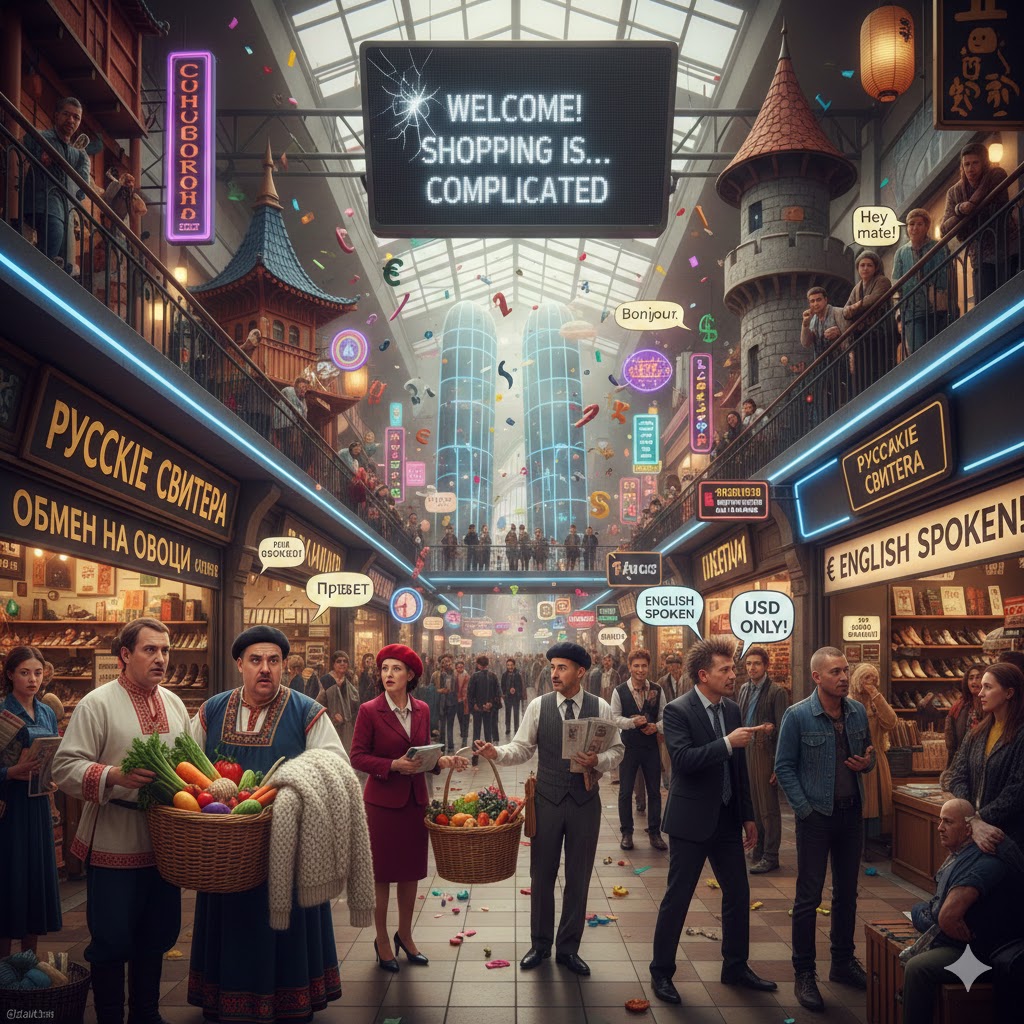
Imagine you go shopping at a massive mall, but every single store has its own set of bizarre rules, languages, and currencies:
- The shoe store only speaks French and accepts Euros.
- The sweater shop speaks Russian and only accepts trades for vegetables.
- The shirt boutique speaks English and only takes Dollars.
Shopping becomes an absolute nightmare. You have to learn a new language and find specific currency for every single door you walk through. And the cherry on top? Every other customer has to go through this same struggle. It’s inefficient and exhausting.
Now, imagine the mall management decides to standardize everything. They tell every store: « You must display prices in Euros and use a standard credit card terminal. » Plus, the rules for interaction are now the same for everyone:
- The customer enters and introduces themselves in English.
- The seller welcomes them and explains what they sell in English.
- The customer picks their items and pays with a standard bank card.
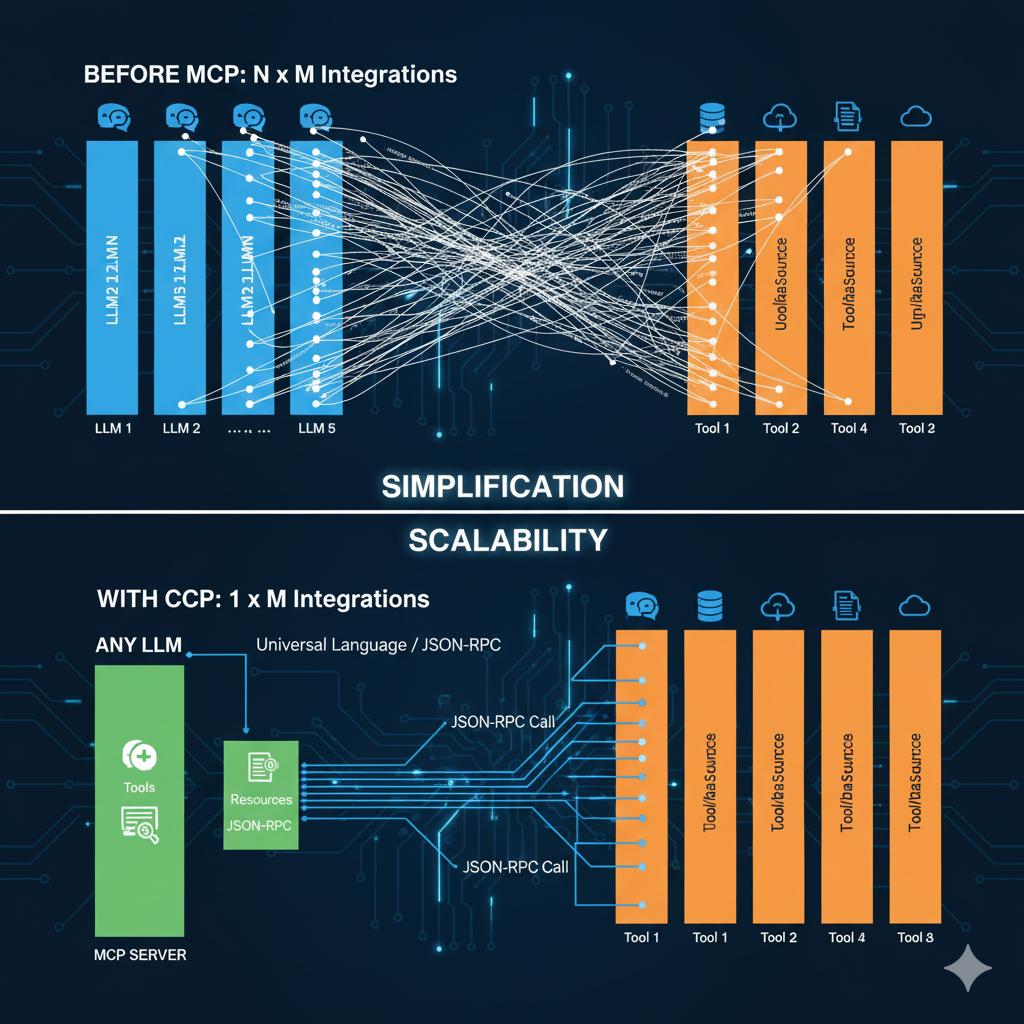
Life just got a whole lot easier, right? MCP is exactly that. It is a universal language that allows LLMs to understand your tools.
We can all agree that the true power of an LLM is unlocked when it can access external tools to read information or take action. But if your data is scattered across Word, Notion, Slack, and Google Drive, you don’t want to write custom code for every single LLM just to tell it how to access each tool: MCP defines a single, unified way for any LLM to talk to any tool.
2. MCP Architecture
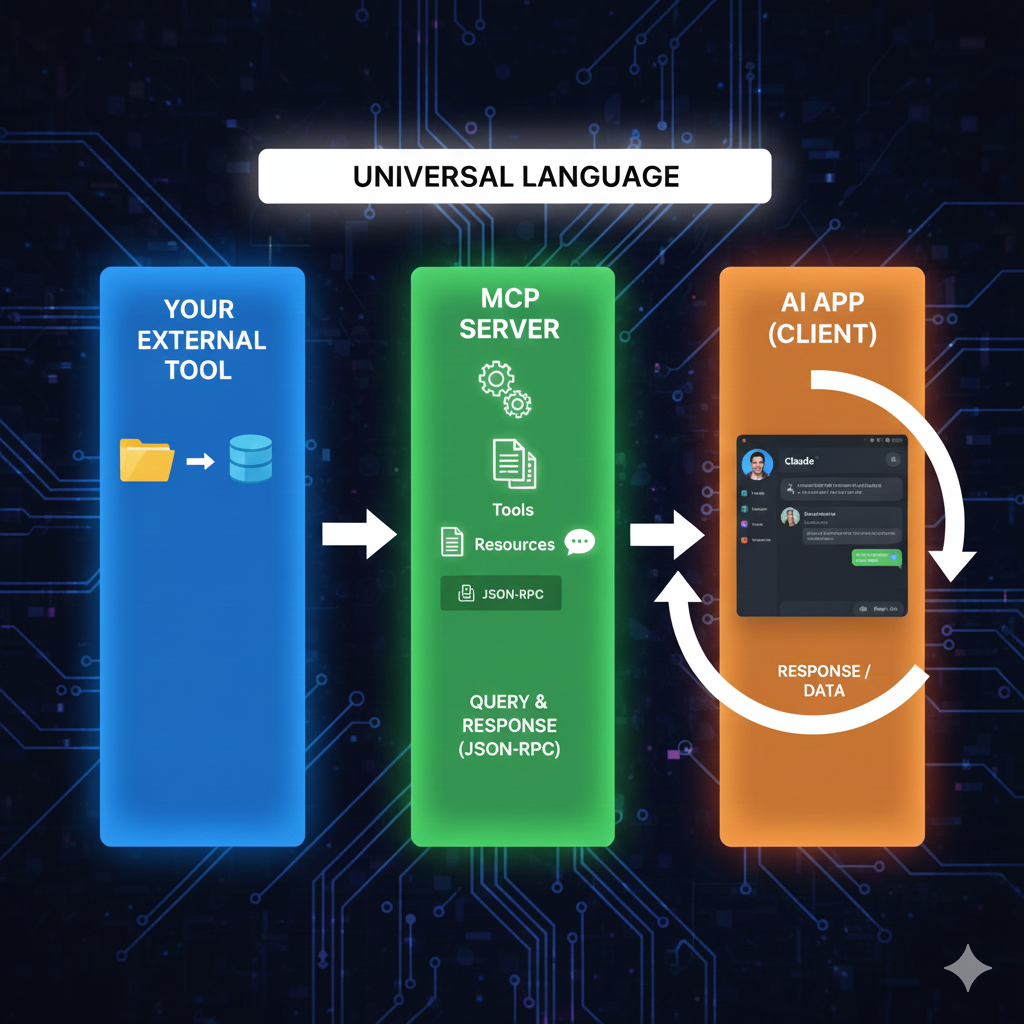
If you’ve followed the analogy, the components of an MCP setup will feel very familiar:
-
The External Tool: This is your data source (Google Drive, Notion, a database, etc.).
-
The MCP Server: This acts like the store clerk. It tells anyone who asks what it can do (documentation, actions, etc.) via the tool.
-
The AI App (The Client): This is the interface (like Claude Desktop or a custom app) that queries the MCP server and communicates with it. It is the bridge between LLM and MCP server.
3. What’s Inside an MCP Server?
To see what’s under the hood, we are going to build a « skeleton » MCP server and define its components one by one.
Creating a Blank MCP Server:
We’ll use Fast-MCP, an excellent Python library for building MCP servers quickly.
from fastmcp import FastMCP
import aiofiles

mcp = FastMCP("My MCP Server")

if __name__ == "__main__":
    mcp.run()
Note: This isn’t a full Fast-MCP tutorial—if you want to dive deep into the library, check out their official docs!
1. Tools
These are like an agent’s « gear. » It’s code that, when executed, allows the LLM to interact with the outside world—like calling an API or querying a database. For our example, we’ll code three tools:
- Weather Tool: Calls an API to find the current weather in a city.
@mcp.tool
async def get_weather(city_name: str) -> str:
    """Get the current weather in a city

    Args:
        city_name (str): The name of the city

    Returns:
        str: The current weather in the city
    """
    import requests
    res = requests.get("https://some-weather-api", params={"city", city_name})
    res.raise_for_status()
    return res.json()["weather"]
- Logarithm Tool: A simple utility to calculate logs.
@mcp.tool
async def get_log(val: float) -> float:
    """
    Get the natural logarithm of a number
    """
    import math
    return math.log(val)
-
Database Tool: To insert a new user into a database.
@mcp.tool
async def insert_user(first_name: str, last_name) -> int:
    """Insert a user in database

    Returns:
        int: The user id in database
    """
    import psycopg2
    conn = psycopg2.connect(
        host="db_host",
        database="your_db_name",
        user="your_username",
        password="your_password"
    )

    cur = conn.cursor()

    # 3. Use the RETURNING id clause
    # Note: "user" is in quotes because it is a reserved keyword
    sql = """INSERT INTO "user" (first_name, last_name)
                VALUES (%s, %s) RETURNING id;"""

    cur.execute(sql, (first_name, last_name))

    user_id = cur.fetchone()[0]

    conn.commit()
    cur.close()
return user_id2. Resources
Resources are typically read-only data, like project documentation or internal company procedures. Technically, you could use a « Tool » to fetch a document, but defining it as a « Resource » changes how it’s handled in the UI. For instance, in Claude Desktop, resources are highlighted so the user knows exactly what documents the AI can « see. » We’ll define three types:
- A Resource Template that returns a fixed string based on a parameter.
@mcp.resource("resource://greeting/{name}")
async def get_greating_message(name: str) -> str:
return f"Hello {name}, How are you doing ?"- A Data Resource that returns raw data.
@mcp.resource("data://config")
async def get_app_settings() -> dict:
return {"status": "OK", "version": "1.0.5"}- A File Resource that streams the content of a log file
# You can create a fke log file using this command:
# echo "fake logs" >> log.txt

@mcp.resource("file://./log.txt", mime_type="text/plain")
async def read_important_log() -> str:
    """Reads content from a specific log file asynchronously."""
    try:
        async with aiofiles.open("./log.txt", mode="r") as f:
            content = await f.read()
        return content
    except FileNotFoundError:
return "Log file not found."3. Prompts
These are configurable templates the end-user can use to talk to the LLM. In a client like Claude Desktop, when you type a « / » (slash), it suggests a list of available prompts. The client then asks the server for the prompt content and passes it to the LLM.
@mcp.prompt
def ask_about_topic(topic: str) -> str:
    """Generates a user message asking for an explanation of a topic."""
return f"Can you please explain the concept of '{topic}'?"4. How the Protocol (the « P ») Works
Now, let’s talk about the « P » in MCP. Instead of speaking English like in our mall example, MCP uses JSON-RPC. It’s a structured language that applications use to understand each other perfectly.
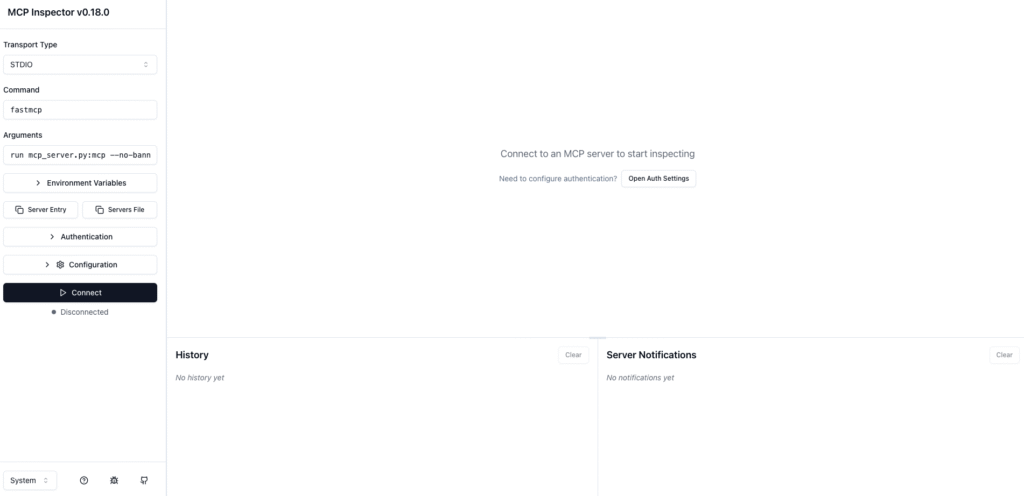
To follow along, you can use the MCP Inspector:
fastmcp dev mcp_server.py:mcpThis command should open the inspector on a new web browser. We will use this inspector to follow all the steps of the protocole.
Step 1: Connection (The Handshake)
This is the initial greeting (click on the ‘Connect’ button)
-
Handshaking (Client -> Server): The client introduces itself: « Hey buddy, I’m a client and I want to use your services. »
-
Response (Server -> Client): The server announces its capabilities and provides a session ID.
-
Confirmation (Client -> Server): The client confirms it’s ready. Connection established!

Step 2: Discovery
Once connected, the client asks for specifics:
-
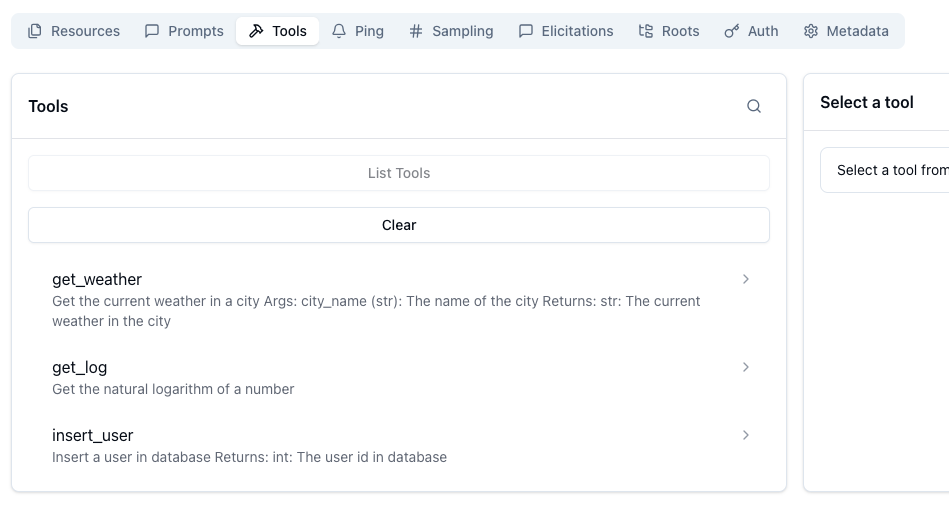
Listing Tools: The client calls
tools/list. The server returns descriptions and the « schema » (the arguments the AI needs to provide, likecityfor the weather tool). Click on `list tools` button in inspector to see the results
-
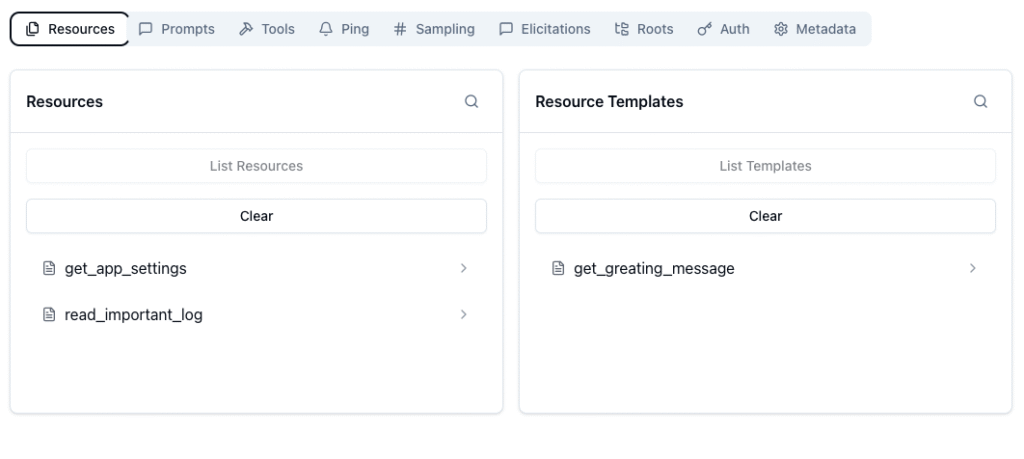
Listing Resources: The client calls
resources/listto see available read only resources.
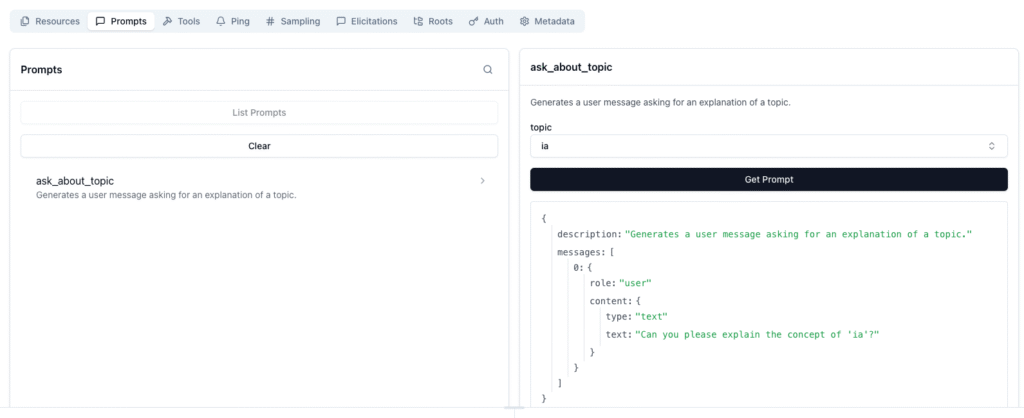
- Listing Prompts: The client calls
prompts/listto see available templates.
Step 3: The Request Lifecycle
This is what happens when you actually ask the AI a question, like « What’s the weather in Paris next week? »
-
Context Injection: The client sends your question to the LLM along with the list of tools it found earlier.
-
LLM Decision: The LLM realizes it needs a tool. It responds with a specific tag:
<tool_use>{"name": "get_weather", "args": {"city": "Paris"}}</tool_use>. -
The Call: The Client intercepts this, turns to the MCP Server, and sends a JSON-RPC command:
{"method": "tools/call", "params": {"name": "get_weather", ...}}. -
The Execution: The MCP Server runs the Python code, hits the weather API, and returns the raw data:
12°C, Cloudy. -
The Final Answer: The Client sends that result back to the LLM. The LLM then tells you: « In Paris, it is currently 12°C with cloudy skies. »
Conclusion
We’ve explored the Model Context Protocol (MCP), unveiling how this crucial standard brings order to the often chaotic world of LLM interactions with external tools. From our « Shopping Mall Chaos » analogy to dissecting its architecture and understanding the step-by-step protocol, we’ve seen how MCP provides a universal language for LLMs to efficiently access tools, resources, and prompts.
By standardizing communication via JSON-RPC, MCP eliminates the need for bespoke integrations for every LLM and every tool, paving the way for more robust, scalable, and intuitive AI applications. It’s truly about making LLMs smarter by giving them clear, consistent access to the world outside their neural networks.
Looking ahead, the synergy between MCP and AI agents is particularly exciting. Imagine agents capable of autonomously discovering, utilizing, and even chaining MCP-enabled tools to achieve complex goals. Perhaps that will be the subject of our next deep dive!